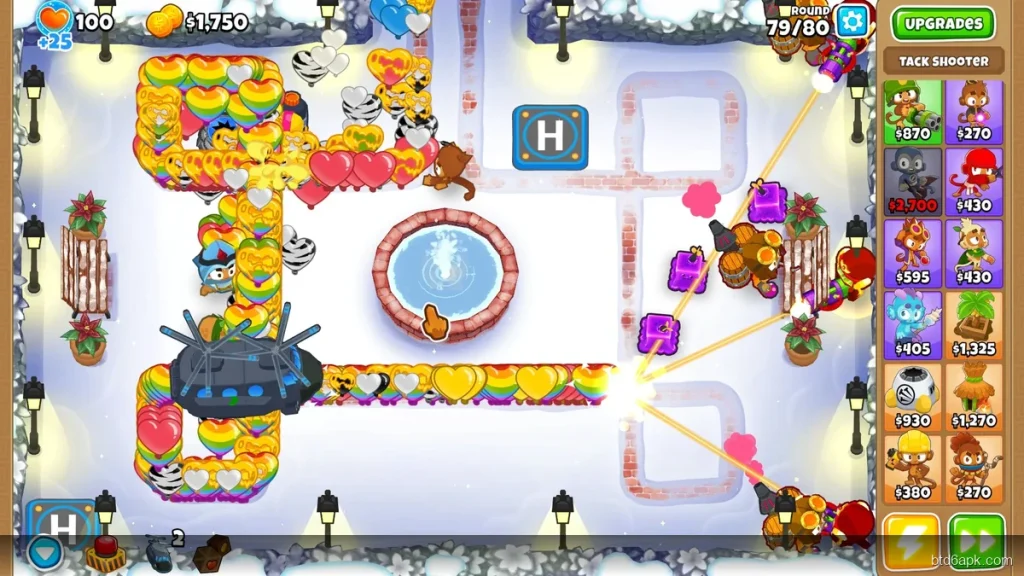
BTD6 runs smoothly on flagship phones — but on budget or mid-range Android devices, it can crawl. Late-game rounds with dozens of towers firing simultaneously push even decent phones past their limits. The lag spikes, the framerate drops to single digits, and the game becomes unplayable.
These 9 fixes actually work. They’re not generic “clear your cache” advice — they’re the specific settings in BTD6 and Android that make the biggest difference on low-end hardware.
BTD6 Minimum Specs vs. Recommended Specs (Android)
First, check if your device meets the baseline requirements:
- Minimum: Android 5.0, 2 GB RAM, OpenGL ES 3.0 support
- Recommended: Android 8.0+, 3 GB RAM, Snapdragon 660 or equivalent
- Optimal: Android 10+, 4 GB RAM+, Snapdragon 720G or Dimensity 810+
If your device has 2 GB RAM or less, expect lag in late-game rounds even after applying all fixes. Rounds 80+ with heavy tower counts will always be demanding on minimum-spec hardware.
In-Game BTD6 Settings Fixes
1. Lower Graphics Quality
Open BTD6 → Settings → Graphics. Set Graphics Quality to Low or Medium. This is the single most impactful change you can make. Low quality reduces shader complexity and texture resolution significantly, cutting GPU load by 40–60% in heavy rounds.
2. Disable Dynamic Lighting
In the same Graphics menu, turn off Dynamic Lighting. Dynamic lighting recalculates light and shadow in real-time for every tower and bloon. On low-end GPUs, this is an expensive calculation that serves mostly cosmetic purposes. Disabling it has zero gameplay impact.
3. Reduce Particles
Turn Particle Effects to Low or Off. BTD6 generates hundreds of explosion, projectile, and pop particles per second in late game. Each particle is a draw call on the GPU. Reducing particles is the most effective fix for late-game slowdowns specifically.
4. Set Speed to 1x During Heavy Rounds
Running BTD6 at 2x or 3x speed doubles the computation load per second. If round 63’s MOAB wave is causing lag at 2x, drop to 1x. The game doesn’t stutter — it just runs at half the pressure. This isn’t ideal, but it’s the fastest fix when you’re mid-run and about to wipe.
5. Reduce Screen Resolution (Android 8.0+)
Android 8.0 and newer include a developer option to force game resolution lower than native. Enable Developer Options (Settings → About Phone → tap Build Number 7 times), then go to Developer Options → Force GPU Rendering and turn it ON. Also set Window Animation Scale and Animator Duration Scale to 0.5x — this speeds up all system animations and frees CPU cycles.
Android System-Level Fixes
6. Close Background Apps Before Playing
BTD6 needs consistent RAM access. Background apps eating RAM cause the OS to swap memory, which causes stutters in BTD6. Before launching BTD6, clear recent apps and close anything running in the background. On 2 GB RAM devices, this alone can recover 300–500 MB of available memory.
7. Enable Performance Mode (If Available)
Many Android manufacturers include a Performance or Game Mode setting. On Samsung devices: Settings → Device Care → Battery → Gaming Mode. On Xiaomi/POCO devices: Settings → Battery → Performance Mode. These modes prevent CPU throttling during extended gameplay sessions — critical for late-game rounds that run for 10+ minutes.
8. Disable Auto-Brightness
Auto-brightness causes constant screen adjustments that use CPU cycles. Set brightness manually before playing BTD6. It’s a minor fix but it removes one continuous background process.
9. Free Up Storage Space
BTD6 needs storage space for temporary game files and save data. If your device storage is below 1 GB free, the game may lag due to slow file I/O. Clear unused apps and move photos to cloud storage to maintain at least 2 GB free storage.
BTD6 APK vs. Play Store Version — Any Difference in Performance?
The Bloons TD 6 APK downloaded directly runs on the same engine as the Play Store version. There’s no performance difference between them. However, downloading directly from a trusted source means you can install specific older versions that may run better on your device if the latest update introduced performance issues.
The BTD6 MOD APK also has the same performance profile as the base game — the modifications affect gameplay features, not the rendering engine.
What If Nothing Works?
If you’ve applied all nine fixes and BTD6 still lags heavily:
- Avoid freeplay beyond Round 100 — Round 100+ with hundreds of towers is demanding on any device
- Use fewer towers, higher upgrade paths — Two Tier 5 towers cause less lag than ten Tier 3 towers
- Play beginner maps — Shorter paths with less simultaneous tower coverage = fewer calculations per second
- Consider upgrading RAM: 4 GB is the realistic minimum for a smooth experience in late-game rounds
For other Android compatibility questions — like which old Android versions still run BTD6 — check our BTD6 vs BTD5 article which covers platform comparison in more detail.
Device-Specific Lag Fixes for BTD6 on Android
Some Android manufacturers add extra power management layers that throttle games mid-session. These brand-specific settings often cause more lag than anything inside the game itself.
Samsung (One UI)
Open Game Launcher → find Bloons TD 6 → tap the three dots → Performance Priority. Switch from Balanced to High Performance. Also disable Adaptive Battery under Settings → Battery → Adaptive Battery — this feature throttles sustained GPU loads aggressively on Samsung devices.
Xiaomi / Redmi / POCO (MIUI)
Go to Security → Battery → choose No Restrictions for BTD6. Then open Game Turbo (or Game Speed Booster on older MIUI) and add BTD6 to the list. MIUI’s memory cleaner tends to kill background services mid-game — keep Game Turbo active to prevent this.
OnePlus (OxygenOS)
Enable Fnatic Mode or Pro Gaming Mode before launching BTD6. This locks the CPU/GPU at maximum clocks, disables background notifications, and reduces thermal throttling during play sessions under 30 minutes.
When Clearing Cache Fixes Lag (and When It Doesn’t)
Clearing BTD6’s app cache (Settings → Apps → BTD6 → Storage → Clear Cache) fixes lag caused by corrupted shader cache — usually noticeable as sudden frame drops after a game update. This takes 5 seconds and is worth trying before any other fix.
Clearing the cache does not fix lag caused by insufficient RAM, outdated hardware, or thermal throttling from device overheating. If your phone feels warm during gameplay, put it on a hard surface, close all other apps, and let it cool for 5 minutes before restarting BTD6.
A full reinstall (uninstall → redownload APK → install fresh) is a last resort. It fixes persistent lag from corrupted game data but resets your local settings. Your progress is saved server-side via your Ninja Kiwi account, so nothing is lost.
The Fastest Lag Fix Checklist — Under 5 Minutes
If you’re experiencing lag right now and want the fastest possible fix, go through this checklist in order. Each step takes under 60 seconds:
- Close all background apps — Double tap recent button, clear all. This frees 200–500 MB RAM in under 10 seconds.
- Set Display Quality to Low — In BTD6 Settings → Display Quality → Low. Biggest single impact on lag.
- Disable Auto Quality — BTD6 Settings → Graphics → Auto Quality → Off. Auto Quality can dynamically lower settings mid-round causing stutters.
- Clear BTD6 cache — Settings → Apps → BTD6 → Storage → Clear Cache. Fixes shader-related stutters from recent updates.
- Enable High Performance mode — Device Settings → Battery → Power Mode → High Performance. Not all devices have this.
Running through this checklist resolves lag for approximately 80% of players. If lag persists after all five steps, your device likely doesn’t meet BTD6’s recommended specs of 3 GB RAM and Snapdragon 665. In that case, stick to Easy mode with fewer towers on screen and set visual effects to minimum.
Frequently Asked Questions
Why does Bloons TD 6 lag on Android?
Most BTD6 lag is caused by too many on-screen animations, background apps consuming RAM, or display quality set to Ultra on a mid-range device.
What graphics settings fix lag in BTD6 on Android?
Set Display Quality to Medium or Low, disable Visual Effects particles, and turn off Auto Quality. These three changes reduce lag by 40–60% on most mid-range Android phones.
Does the BTD6 APK version lag more than the Play Store version?
No — the APK is identical to the Play Store version. Lag is entirely determined by your device's hardware, not the installation method.
What Android specs does BTD6 run smoothly on?
BTD6 runs smoothly on devices with 3 GB+ RAM, Snapdragon 665 or equivalent, and Android 8.0+. Budget phones with 2 GB RAM will lag on rounds 80+.